Booking Details Screen
What is this screen?
The Booking Details Screen shows you comprehensive information about a specific booking. You get here by tapping a booking card from the Home Screen, Bookings Screen, or from a notification. This screen provides complete details about your booking, all containers involved, and your visit timeline.
What can you do here?
- View complete booking information: See all details about your appointment
- Check container details: Review all containers in the booking with their specifications
- See your visit timeline: View the chronological events of your visit (if the visit has started)
- Access WIM data: View weigh-in-motion information (Port Botany only, if available), for past bookings.
Understanding the screen
Back Navigation
At the top-left, you'll see a back arrow (←). Tap this to return to the previous screen (Home, Bookings, or wherever you came from).
Segmented Control
Near the top, you'll see two or three segments:
- Basic Info: Booking summary and container list
- Timeline: Chronological events of your visit (available after check-in)
- WIM: Weigh-in-motion data (Port Botany only, when available)
Tap a segment to switch between different views of your booking.
Basic Info Tab
This is the default view and shows:
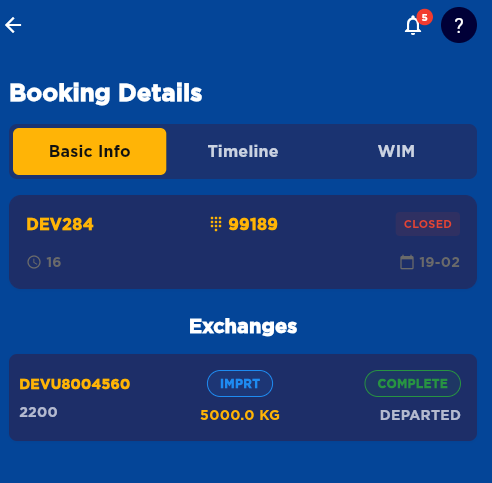
The screenshot above displays the Basic Info tab with the booking summary card at the top showing the vehicle registration (DEV284), manifest PIN (99189), status (CLOSED), time (16), and date (19-02). Below that is the Exchanges section showing container details including the container ID (DEVU8004560), size (2200), exchange type (IMPORT), weight (5000.0 KG), and status (COMPLETE, DEPARTED).
Booking Summary Card:
- Registration number and BAT number (if assigned)
- Manifest PIN (number with keypad icon)
- Booking time and date
- Status indicators (HOLD, OPEN/CLOSED, OOG)
Container List:
All containers in your booking with:
- Container ID: Unique identification number
- Exchange Type: IMPORT, EXPORT, THROUGH, etc..
- Container Size: 20' (20 foot) or 40' (40 foot)
- Container ISO Type: ISO number
- Status: Current state of the container exchange
- Position: Location at the terminal (when assigned)
- Weight: Container weight (when available)
- Special indicators:
- OOG: Out of Gauge (oversized cargo)
Timeline Tab
Shows the chronological sequence of events during your visit
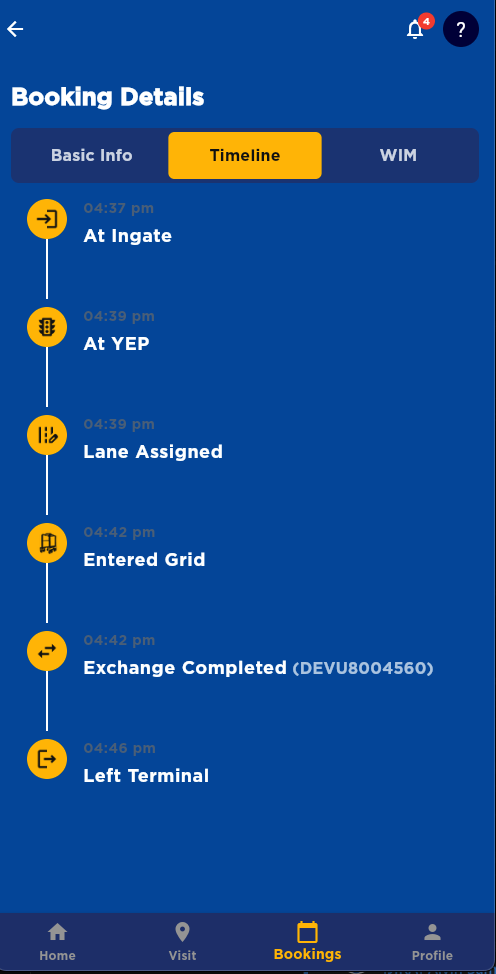
The screenshot above displays the Timeline tab with a vertical timeline showing key events from your visit. Each event is marked with an icon, timestamp, and description. Events shown include check-in points (At Ingate, At YEP), operational milestones (Lane Assigned, Entered Grid), and completion events (Exchange Completed, Left Terminal).
Each event shows the time it occurred.
Note: Timeline only appears after your visit has started. For upcoming bookings, this tab may be empty.
WIM Tab (Port Botany Only)
If you're at Port Botany and weigh-in-motion data is available:
- Shows your truck's weight measurements
- Displays individual axle weights
- Shows total gross weight
- Indicates if weights are within limits
This tab only appears if WIM data is available for your visit.
How to use this screen
Navigate between tabs
- Tap Basic Info to see booking summary and containers
- Tap Timeline to see your visit's chronological events
- Tap WIM (if available) to see weight data
The selected tab is highlighted.
Review container information
- Scroll through the container list
- Each container card shows complete details
- Look for special indicators (OOG)
- Check the status to see progress (PENDING, IN PROGRESS, COMPLETE)
Check your timeline
- Switch to the Timeline tab
- Scroll through events chronologically
- See when each step of your visit occurred
- Use this for record-keeping or if you need to reference timing
Go back
Tap the back arrow (←) in the top-left corner to return to the previous screen.
Mobile tips
- Scroll for more info: All tabs are scrollable - swipe up to see more containers or timeline events
- Check all tabs: Make sure to check Basic Info, Timeline, and WIM (if available) to get the complete picture
- Note special containers: Pay attention to OOG indicator - these require special handling
- Timeline updates: The Timeline tab updates in real-time during your visit
- Use for record-keeping: The Timeline provides a detailed record of your visit for your records
Common questions
Q: How do I get to this screen?
Tap any booking card from: - The Home Screen (next booking card) - The Bookings Screen (any booking in the list) - A push notification (when you tap a booking notification)
Q: What's the difference between the tabs?
- Basic Info: Shows booking summary and all container details
- Timeline: Shows chronological events during your visit
- WIM: Shows weight measurements (Port Botany only)
Q: Why don't I see the Timeline tab?
The Timeline tab may be empty or limited for upcoming bookings that haven't started yet. Once you check in at the terminal, the timeline will populate with events.
Q: Why don't I see the WIM tab?
The WIM tab only appears when: - You're at Port Botany terminal - Weigh-in-motion data is available for your visit
Q: What does each container status mean?
- PENDING: The container exchange hasn't started
- IN PROGRESS: Currently being loaded or unloaded
- COMPLETE: The exchange is finished
Q: What is OOG?
OOG stands for "Out of Gauge" - it means the cargo exceeds standard container dimensions. These containers require special handling and may need specific lanes or equipment.
Q: How can I use the Timeline for record-keeping?
The Timeline shows exactly when each event occurred during your visit. You can reference this to verify: - What time you checked in - How long processing took - When you completed each exchange - What time you checked out
Q: What should I do if I see incorrect information?
If any details appear incorrect, contact the terminal or reach out to your dispatcher. Terminal staff can verify and correct booking information.
Q: Can I see past bookings this way too?
Yes! Go to the Bookings Screen, select "Completed" from the segmented control, then tap any completed booking to see its full details and timeline.
Q: Why is my Manifest PIN important?
Your Manifest PIN might need to be used to identify your booking at the terminal. Keep it handy - you might need to enter it.