Bookings
What is this screen?
The Bookings screen shows you all your bookings in one place - upcoming appointments, completed visits, and cancelled bookings. Unlike the Home Screen (which shows only your next booking), this screen gives you a complete view of your booking history and future schedule.
What can you do here?
- View upcoming bookings: See all your scheduled future bookings
- Review completed visits: Look at your past terminal visits for record-keeping
- Check cancelled bookings: See which bookings were cancelled
- Access booking details: Tap any booking to see full details including containers and exchange information
Understanding the screen
Upcoming Bookings
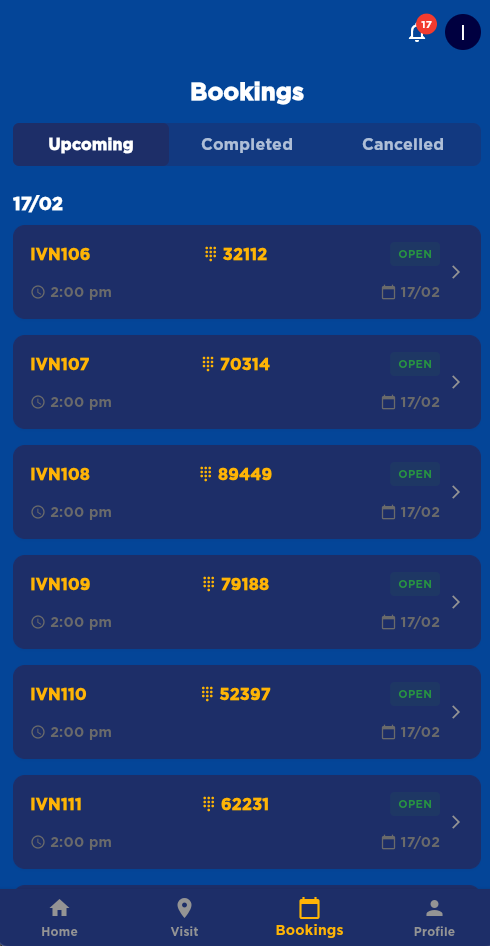
The screenshot above illustrates the Bookings Screen with the segmented control tabs at the top, date-grouped booking cards organized chronologically, and status indicators clearly visible on each booking entry.
Completed Bookings
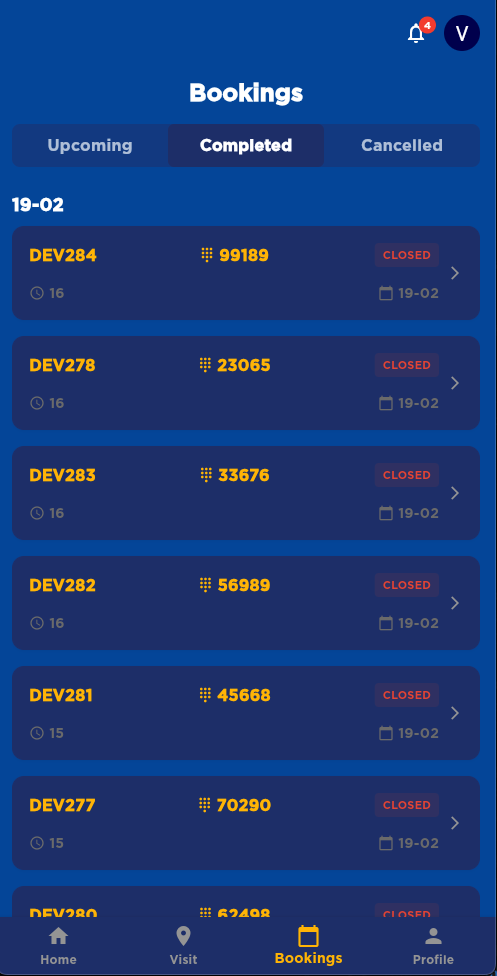
The screenshot above shows the Completed tab, displaying your past terminal visits. Each completed booking card shows the vehicle registration, manifest PIN, and the date the visit was completed. The CLOSED status indicates these are historical bookings that have already been processed.
Segmented Control
At the top, you'll see three segments:
- Upcoming: Future scheduled bookings
- Completed: Past visits you've completed
- Cancelled: Bookings that were cancelled
Tap a segment to switch between viewing different types of bookings.
Date Grouping
Bookings are grouped by date with smart labels:
- Today: Bookings for the current day
- Tomorrow: Bookings for the next day
- Full date: For dates further in the future or past (e.g., "Friday, January 30")
This makes it easy to see when your bookings are scheduled.
Booking Cards
Each booking appears as a card showing:
- Registration number (and BAT number if assigned)
- Manifest PIN: Your manifest PIN (shown with keypad icon)
- Status indicators:
- HOLD (orange): The booking has containers with holds
- OPEN (green) or CLOSED (red): Whether the booking time slot is currently open
- OOG (red with help icon): "Out of Gauge" - indicates cargo exceeding standard dimensions
- Time and date: When your booking is scheduled
- Arrow: Indicates you can tap for more details
How to use this screen
Switch between booking types
- Tap Upcoming to see future bookings
- Tap Completed to see past visits
- Tap Cancelled to see cancelled bookings
The segment you've selected is highlighted.
View booking details
Tap any booking card to see:
- Complete booking information
- All containers in the booking
- Container details (ID, size, type, status)
- Exchange information (import/export)
- Special handling requirements
Tap the back arrow to return to the list.
Scroll through bookings
- Swipe up to see more bookings
- Bookings are sorted by date (most recent first for completed/cancelled, soonest first for upcoming)
- Each date group is clearly labeled
Mobile tips
- Automatic refresh: The list automatically updates every few minutes to show the latest booking information
- Tap for details: Always tap a booking card to see complete container and exchange information
- Use segments: Quickly switch between upcoming, completed, and cancelled bookings using the segmented control
- Watch for date groups: Dates are clearly separated and labeled to help you find bookings quickly
- Check the Home Screen first: If you just need to see your next booking, check the Home Screen instead
Common questions
Q: How is this different from the Home Screen?
The Home Screen shows only your next (single) upcoming booking. The Bookings Screen shows ALL your bookings - upcoming, completed, and cancelled - in one comprehensive list.
Q: How often does the list update?
The list automatically refreshes every few minutes (usually every 5 minutes).
Q: Why are bookings grouped by date?
Date grouping makes it easier to see when your bookings are scheduled. You can quickly find bookings for today, tomorrow, or specific dates.
Q: What does "Completed" mean?
Completed bookings are visits you've finished - you've checked in, completed the container exchanges, and checked out at the terminal.
Q: What does "Cancelled" mean?
Cancelled bookings are appointments that were cancelled either by you, your company, or the terminal. They appear here for your records.
Q: Can I see container details for completed visits?
Yes! Tap any completed booking to see all the container exchange details, just like you can for upcoming bookings.
Q: What does HOLD mean on a booking?
A HOLD indicator means there are administrative holds on your booking that need to be cleared before you can proceed. Contact the terminal or your dispatcher.
Q: What does OOG mean?
OOG stands for "Out of Gauge" and indicates cargo that exceeds standard container dimensions. Tap the help icon (ⓘ) next to it for more information.
Q: Why can't I see a booking I know I have?
Make sure you're on the right segment (Upcoming, Completed, or Cancelled). Also check that the date grouping is correct.
Q: How far back can I see completed visits?
The system shows your recent completed visits. The exact time range depends on system configuration, but typically shows visits from the past several weeks or months.
Q: Can I rebook a cancelled booking from here?
No, you can't rebook directly from this screen. Contact your dispatcher or book a new appointment through your normal booking process.
Q: What's the number with the keypad icon?
That's your Manifest PIN number, which you'll need when checking in at the terminal. Keep this number handy.
Q: Why do some bookings show "CLOSED"?
A booking shows CLOSED when you cannot enter the terminal yet.
Q: How do I get back to this screen from booking details?
Tap the back arrow (←) in the top-left corner of the booking details screen.
Q: Can I sort or filter bookings?
Currently, bookings are automatically sorted by date. If you need specific filtering options, let us know through the Feedback option in the Profile tab.