Visit
What is this screen?
The Visit screen shows you real-time information about your current terminal visit. When you have an active visit (you've arrived at the terminal), this screen displays your booking details, container exchange status, lane assignments, and real-time instructions.
This is your operational command center while you're at the terminal - it tells you where to go and what to do next.
What can you do here?
- View your booking information: See your registration, manifest PIN, time, lane assignment, and booking status
- Track container exchanges: See which containers are being loaded or unloaded and their weight
- View container details: See container IDs, types, exchange types (Import/Export, etc), weights, and position numbers
- Access WIM information (Port Botany only): View weigh-in-motion data for your truck
Understanding the screen
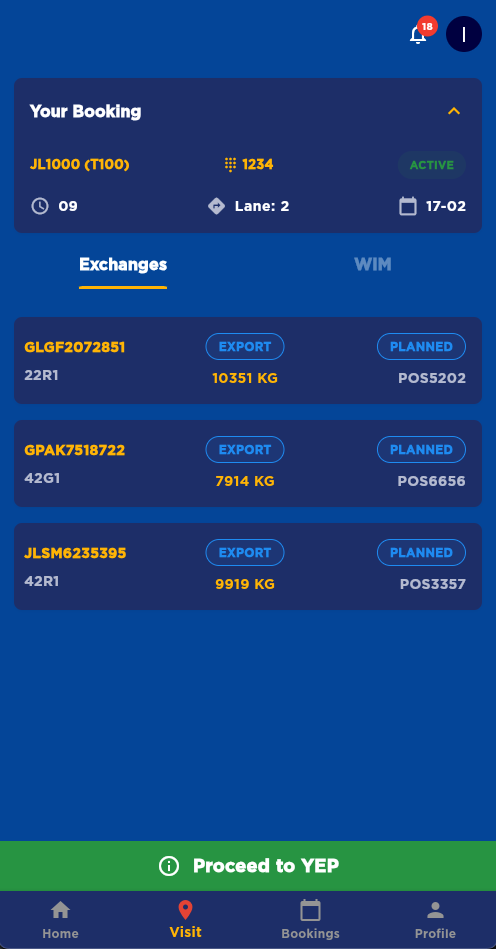
The screenshot above demonstrates the Visit Screen layout during an active terminal visit, showing the booking information card at the top with lane assignment, the container exchange list with detailed container information, and the message at the bottom. The message will change dynamically to indicate what to do and give you instructions.
Your Booking Card
At the top, you'll see a card with your current booking:
- Registration number (e.g., JL1000) and BAT number (e.g., T100)
- Manifest PIN: Your manifest PIN (with keypad icon)
- Time: Your booking time (e.g., 09)
- Lane assignment: Which lane you should proceed to (e.g., Lane: 2)
- Date: Your booking date (e.g., 17-02)
- Status: ACTIVE (green) or other status indicators
Tap the card to expand it and see complete booking details, or tap again to collapse it.
Exchanges and WIM Tabs
You'll see two tabs at the top:
- Exchanges: Shows your container exchanges (default view)
- WIM: Shows Weigh-in-Motion data for your truck (Port Botany only)
Tap a tab to switch between views.
Container Exchange List
The main section shows all containers in your visit:
- Container ID: The unique number for each container (e.g., GLGF2072851)
- Container size/type: (e.g., 22R1, 42G1)
- Exchange type: IMPORT or EXPORT (shown in blue badge)
- Weight: Total weight in kilograms (e.g., 10351 KG)
- Status: PLANNED or other status (shown in blue badge)
- Position number: Where the container is located (e.g., POS5202)
How to use this screen
View your booking information
- Look at the "Your Booking" card at the top
- You'll see your registration number, manifest PIN, time, lane, and date
- Tap the card to expand and see more details
- Tap again to collapse it
Review container exchanges
- Make sure you're on the "Exchanges" tab
- Scroll through the list to see all containers
- Each container shows:
- Container ID
- Size/type
- Exchange type (IMPORT or EXPORT)
- Weight in kilograms
- Status (PLANNED, etc.)
- Position number
Switch to WIM information (Port Botany only)
- Tap the "WIM" tab at the top
- View weigh-in-motion data for your truck
- Tap "Exchanges" to return to container list
Proceed with your visit
- When you're ready to proceed, tap the green "Proceed to YEP" button at the bottom
- This confirms you're ready to move forward with your visit
Mobile tips
- Check your lane: Your lane assignment is shown in the "Your Booking" card at the top - make sure you know which lane to proceed to
- Review all containers: Scroll through the container list to see all items in your exchange
- Note the weights: Container weights are displayed in kilograms - important for planning your visit
- Position numbers: Each container has a position number (POS) that indicates where it's located
- WIM data: At Port Botany, switch to the WIM tab to see weigh-in-motion data for your truck
Common questions
Q: What does EXPORT mean?
EXPORT means you're dropping off (unloading) a container at the terminal.
Q: What does IMPORT mean?
IMPORT means you're picking up (loading) a container from the terminal.
Q: What does PLANNED mean?
PLANNED means the container exchange is scheduled and ready to proceed.
Q: What is the manifest PIN?
Your manifest PIN is a number you'll need when checking in at the terminal. It's shown in your booking card.
Q: What does the position number mean?
The position number (e.g., POS5202) indicates where the container is located at the terminal.
Q: What is the WIM tab?
WIM stands for "Weigh-in-Motion" - it shows weight data for your truck as it passes over weighing equipment at Port Botany terminal.
Q: Is WIM available at all terminals?
No, WIM is only available at Port Botany terminal. Other terminals won't have a WIM tab.
Q: Can I see my booking details?
Yes, tap the "Your Booking" card at the top to expand it and see complete booking information.
Q: What if I need to see the container list again?
If you're on the WIM tab, tap the "Exchanges" tab to return to the container list.
Q: Can I change the container information?
No, container information is provided by the terminal. If there's an error, contact terminal staff.
Q: What if I don't see all my containers?
Make sure you're viewing the correct visit on the Visit screen. If containers are missing, contact terminal staff to verify your booking.