Login Screen
What is this screen?
The Login Screen allows you to sign in to Patrick Connect using your email and password. This is where you authenticate to access your account and the app's features.
What can you do here?
- Sign in with email and password: Access your account with your credentials
- Reset your password: Recover access if you've forgotten your password
- Create a new account: Register for a new account if you don't have one yet
- Review privacy policy: View the app's privacy policy before signing in
Understanding the screen
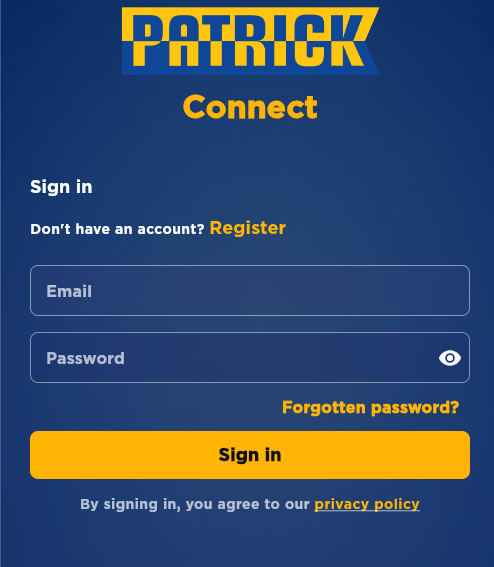
The screenshot above shows the Login Screen with the Patrick Connect branding and all available fields and buttons.
Patrick Connect uses email and password sign-in only. There are no Google, Apple or other social sign-in options.
How to use this screen
Sign in to your account
- Enter your email address in the "Email" field
- Enter your password in the "Password" field
- Tap the "Sign in" button
What happens: The system verifies your credentials. If correct, you're logged in and taken to the main app. If incorrect, you'll see an error message asking you to check your email and password.
Show or hide your password
- Tap the eye icon on the right side of the "Password" field to toggle between showing and hiding your password
- This helps you verify you've typed your password correctly
Reset your forgotten password
- Tap the "Forgotten password?" link on the Login Screen
- You'll be taken to the Forgotten Password Screen
- Enter your email address in the "Email" field
- Tap the "Reset password" button
- Check your email for a password reset link (check spam/junk if needed)
- Click the link in the email to create a new password
- Return to the Login Screen and sign in with your new password
What happens: A password reset email is sent to your registered email address. Follow the link in the email to create a new password. Once you've set your new password, you can sign in normally.
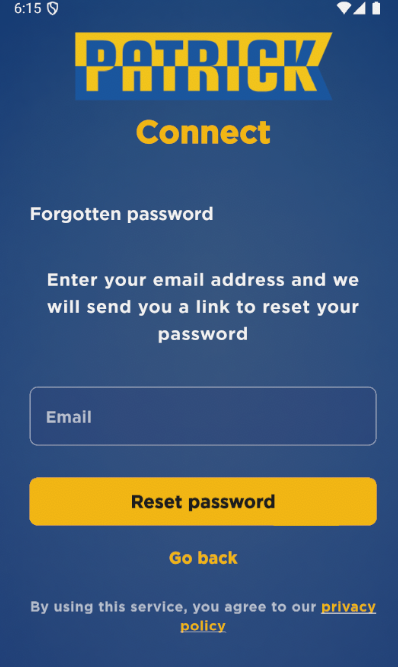
The Forgotten Password Screen allows you to securely reset your password by entering your email address. The screen displays the Patrick Connect branding and clear instructions for the password reset process.
Create a new account
- Tap the "Register" link at the top
- You'll be taken to the Registration Screen where you can create a new account
What happens: You're navigated to the registration form to set up your new account.
Device Activation for Security
What is device activation?
For your security, Patrick Connect requires you to activate any new device you use to sign in. This ensures that only you can access your account from devices you authorize.
When do you need to activate a device?
Device activation is required when you sign in using a different device than the one you originally used for registration. For example:
- You registered on your iPhone and now want to sign in on your iPad
- You registered on your Android phone and now want to sign in on a new Android phone
- You're signing in from a replacement device
- You're signing in through a web browser
Important: You only need to activate each device once. Your original device (the one used for registration) is activated automatically and does not require a PIN.
How device activation works
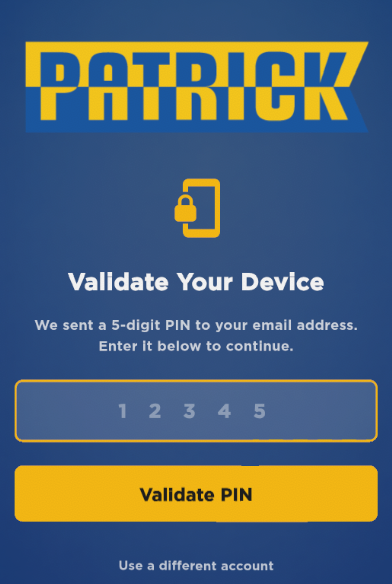
When you sign in from a new device:
- Email sent automatically: The system detects this is a new device and immediately sends a 5-digit PIN to your registered email address
- Activation screen appears: You'll see the "Validate Your Device" screen shown above
- Enter the PIN: Type the 5-digit PIN from the email into the fields on the screen
- Device activated: Once verified, your device is activated and you can use the app normally
What happens: The PIN validates that you have access to your registered email account, confirming your identity. This prevents unauthorized access even if someone has your password.
The device activation email
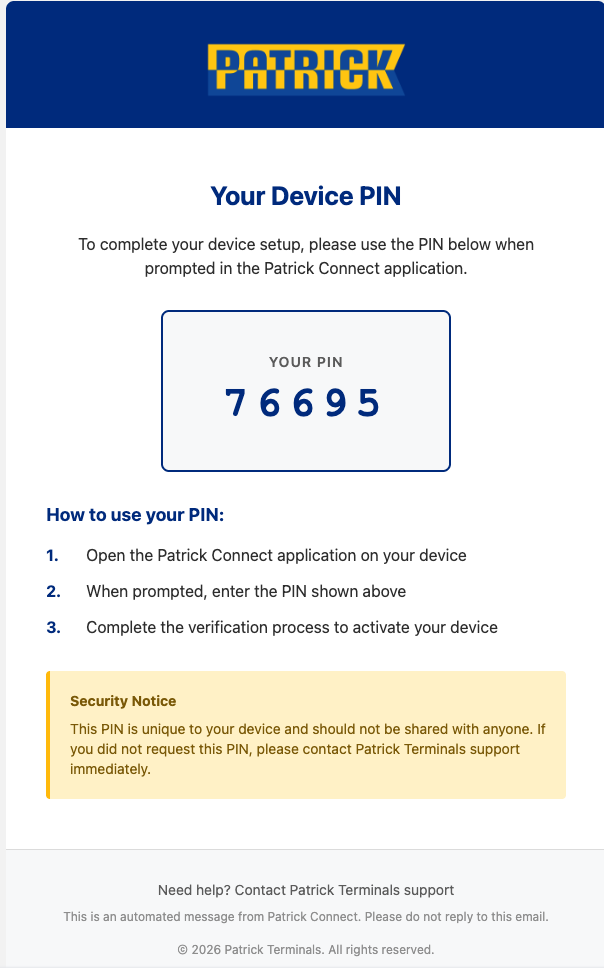
You'll receive an email that looks like the one shown above. The email contains:
- Your 5-digit PIN: A unique code for this device (e.g., 76695)
- Instructions: Clear steps on how to use the PIN
- Security notice: A reminder that this PIN is unique to your device and should not be shared
The email is sent to your registered email address immediately when you sign in from a new device.
How to activate your device
- Sign in to Patrick Connect on your new device using your email and password
- The "Validate Your Device" screen appears automatically
- Check your email inbox for the "Your Device PIN" email from Patrick Connect
- Enter the 5-digit PIN shown in the email into the field on the screen
- The PIN is validated automatically as soon as you enter all 5 digits — you can also tap "Validate PIN"
- Your device is now activated and you can use the app
What happens: Once the PIN is validated, your device is permanently authorized for your account. You won't need to enter a PIN again on this device unless you sign out and sign in again from a different device.
If you need to sign in as somebody else, tap Use a different account at the bottom of the screen. This signs you out and returns you to the Login Screen.
Important notes about device activation
- One-time process: You only need to activate each device once
- Original device unaffected: Your original registration device continues to work without activation
- Email delivery: The PIN email is sent to your registered email address
- Check spam folder: If you don't see the email within a few minutes, check your spam or junk folder
- Limited attempts: You have a limited number of attempts (normally 3) to enter the PIN correctly
- Security purpose: This extra step protects your account from unauthorized access
- Contact support: If you don't receive the PIN email after checking spam, contact Patrick Terminals support for assistance
Device activation questions
Q: Why do I need to activate my device?
This is a security measure to ensure that only you can access your account from new devices. By requiring a PIN sent to your email, we verify that you have access to your registered email account.
Q: Do I need to activate my device every time I sign in?
No. You only need to activate each device once. After activation, you can sign in normally without needing a PIN.
Q: What if I don't receive the PIN email?
First, check your spam or junk folder. The email should arrive within a few minutes. If you still don't see it, contact Patrick Terminals support for assistance.
Q: Can I use multiple devices?
Yes. You can activate and use as many devices as you need. Each device requires activation only once.
Q: What happens to my original device?
Your original device (the one you used for registration) remains active and does not require activation. You can continue using it normally.
Q: Is my original device still secure if I activate other devices?
Yes. All devices require your email and password to sign in. The activation process adds an extra layer of security for new devices.
Q: How long is the PIN valid?
The PIN is valid until you successfully activate your device. There's no time limit, but for security reasons, it's best to activate your device as soon as possible.
Q: What if I enter the wrong PIN?
You'll see an error message. Double-check the PIN in your email and try again, making sure you enter all 5 digits correctly. You only get a limited number of attempts (normally 3) — see the next question if you run out.
Q: What if I run out of PIN attempts?
For security, the device is locked after too many incorrect attempts and the PIN can no longer be used. Contact Patrick Terminals support and ask them to issue a new device PIN for your account.
Q: Can I ask the app to send the PIN again?
Not from the Validate Your Device screen — there's no resend button. Check your spam or junk folder first. If the email hasn't arrived, contact Patrick Terminals support.
Q: Do I need to activate my device if I use the web version?
Yes. Device activation applies to every way of signing in, including a web browser.
Understanding the features
Email field
Enter the email address associated with your Patrick Connect account. This is required to sign in.
Password field
Enter your password. The password field hides your text for security. Use the eye icon to show your password if needed.
Sign in button
This yellow button submits your login credentials. It's only active when you've entered both your email and password.
Forgotten password link
If you can't remember your password, tap this link to start the password recovery process. You'll receive an email with instructions to reset your password.
Register link
If you don't have an account yet, tap "Register" to create a new one.
Privacy policy link
Tap "privacy policy" at the bottom to review how Patrick Connect handles your data.
Mobile tips
- Make sure you have a stable internet connection before signing in
- Check that Caps Lock is off when entering your password
- If you receive an error, verify your email and password are correct
- The password field shows dots instead of letters for security - use the eye icon to verify your password before tapping Sign in
- If you forget your password, use the "Forgotten password?" link to reset it
Common questions
Q: What if I enter the wrong password?
You'll see an error message. Double-check your password and try again. If you continue to have trouble, use the "Forgotten password?" link to reset it.
Q: Is my password secure?
Yes. Your password is hidden as you type (shown as dots), and it's encrypted when sent to the server. Never share your password with anyone.
Q: What if I don't have an account yet?
Tap the "Register" link to create a new account. You'll need to provide an email address and create a password.
Q: Can I use a different email to sign in?
No, you must sign in with the email address you registered with. If you need to change your email, contact support.
Q: How long does it take to reset my password?
You'll receive a password reset email within a few minutes. Click the link in the email to create a new password immediately.
Q: What if I don't receive the password reset email?
Check your spam or junk folder. If you still don't see it, try requesting another reset email. If the problem persists, contact support.
Q: Is there a "Remember me" option?
No, you stay logged in automatically. You won't need to sign in again unless you explicitly log out.
Q: What should I do if I see an error message?
Read the error message carefully - it will tell you what went wrong (e.g., "Invalid email" or "Password incorrect"). Correct the issue and try again.
Q: Can I sign in with a Google, Apple or other social account?
No. Patrick Connect uses email and password sign-in only. If you previously used a Google or Apple account, sign in with the same email address and use "Forgotten password?" to set a password for it.
Q: What if my account is locked?
If you enter the wrong password multiple times, your account may be temporarily locked for security. Wait a few minutes and try again, or use the password reset option.