Registration Screen
What is this screen?
The Registration Screen allows you to create a new Patrick Connect account. You'll provide your email address and create a password to get started with the app.
What can you do here?
- Create a new account: Register with your email and password
- Set a secure password: Create a password that meets the security requirements shown on the form
- Confirm your password: Verify your password is correct before submitting
- Verify your email: Confirm your email address via a verification link sent to your inbox
- Resend the verification email: Request another email if the first one doesn't arrive
- Sign in if you already have an account: Navigate back to the login screen
Understanding the screen
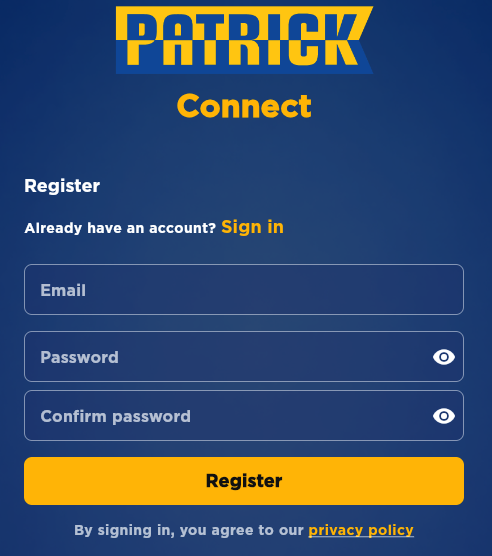
The screenshot above shows the Registration Screen on iOS with the Patrick Connect branding and all available fields and buttons.
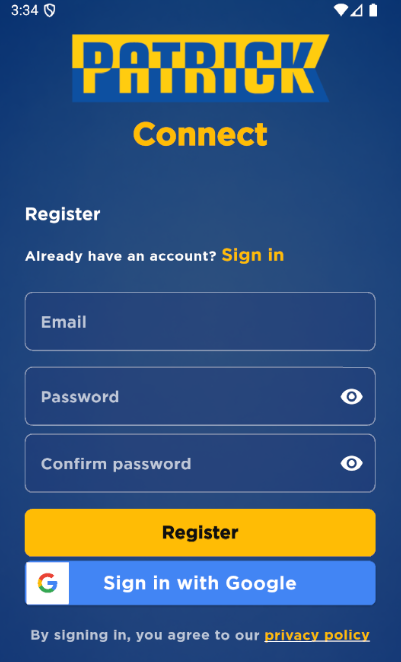
The Android version of the Registration Screen. Both platforms provide the same functionality with platform-appropriate styling.
Patrick Connect uses email and password registration only. There are no Google, Apple or other social sign-up options.
Password requirements
Above the form you'll see a line describing the password rules that apply to your account — for example "at least 8 characters, one uppercase letter and one number". Follow this line when choosing your password; if your password doesn't meet the rules, the app tells you exactly what's missing.
MSIC Email Reminder
During sign-up, you'll see an info message with an icon that says "Use your MSIC application email". Tap this hint to see a dialog explaining that you should use the same email address you provided in your MSIC application. This ensures your account is properly linked to your credentials.
Don't remember which email you used for your MSIC application?
- If you applied through 1-Stop: Go to https://msic.1-stop.biz/ and log in with your credentials. You'll be able to see the email address you used on your MSIC application.
- If you applied through another service: Contact the service provider you used to apply for your MSIC and ask them for the email address on your application.
How to use this screen
Create a new account
- Enter your email address in the "Email" field
- Enter a password in the "Password" field
- Enter the same password again in the "Confirm password" field to verify it
- Tap the "Register" button
What happens: The system creates your account and immediately sends a verification email to your inbox. You're then taken to the "Verify Your Email" screen where the app waits for you to complete verification.
Verify your email
After tapping the "Register" button, you'll see the "Verify Your Email" screen:
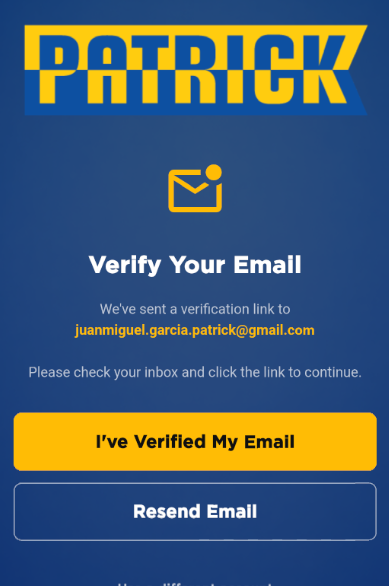
- The app displays a message asking you to verify your email
- Check your email inbox for a verification message from Patrick Connect
- Open the email and tap the verification link inside
- Return to the app and tap the I've Verified My Email button
- You'll be logged in and taken to profile setup
What happens: The system verifies your email address for security. The app does not check on its own — after clicking the link in your inbox, you need to come back and tap I've Verified My Email. The app then confirms your verification and takes you to the next screen, where you complete your profile with additional information (name, surname, MSIC, and terminal).
Tip: If you tap the button before clicking the link (or before the link has been processed), you'll see a message saying your email isn't verified yet. Click the link in your inbox, then tap the button again.
If you want to register with a different email address, use the sign-out option at the bottom of the screen to return to the Login Screen.
Resend the verification email
If you don't receive the verification email within a few minutes:
- Check your spam or junk folder
- On the "Verify Your Email" screen, tap Resend email
- Another verification email is sent to your inbox
- Make sure you entered the correct email address during registration
What happens: The system sends another verification email to your registered email address. After sending, the button is disabled for about 30 seconds before you can request another one — this prevents accidental duplicate emails. Use the newest link you receive.
Enter your email
- Use the email address you want to associate with your Patrick Connect account
- This email will be used for login and account recovery
- Make sure you enter a valid email address you have access to
Create a password
- Enter a password in the "Password" field
- Your password should be strong (mix of uppercase, lowercase, numbers, and symbols if possible)
- The password field hides your text for security
Confirm your password
- Enter the same password again in the "Confirm password" field
- This ensures you've typed your password correctly
- Both passwords must match exactly
Show or hide your password
- Tap the eye icon on the right side of the "Password" or "Confirm password" fields to toggle between showing and hiding your password
- This helps you verify you've typed your password correctly
Complete registration
- After filling in all fields, tap the "Register" button
- The system validates your information and creates your account
- You'll be taken to the "Verify Your Email" screen
- Check your email and click the verification link
- Return to the app and tap I've Verified My Email
- Complete your profile with name, surname, and MSIC information
What happens: Your new account is created and stored securely, but requires email verification before you can fully use the app. Once you verify your email and confirm it in the app, you're logged in and can complete your profile setup.
Understanding the features
Email field
Enter the email address you want to use for your account. This must be a valid email address that you have access to, as it will be used for login and password recovery.
Password field
Create a password for your account. The field hides your text for security. Use the eye icon to show your password if you want to verify what you've typed.
Confirm password field
Re-enter your password to confirm it's correct. Both password fields must match exactly. If they don't match, you'll see an error message.
Register button
This yellow button submits your registration information. It's only active when you've filled in all required fields.
Sign in link
If you already have an account, tap "Sign in" to go back to the login screen instead of registering.
Privacy policy link
Tap "privacy policy" at the bottom to review how Patrick Connect handles your data before creating your account.
Verify Your Email screen
After you tap "Register", you'll see the "Verify Your Email" screen. This screen:
- Displays instructions for verifying your email address
- Shows the email address you registered with
- Provides an I've Verified My Email button to confirm once you've clicked the link in your inbox
- Provides a Resend email button, available again about 30 seconds after each send
- Provides a sign-out option if you need to register with a different email address
Mobile tips
- Make sure you have a stable internet connection before registering
- Click the link in your email first, then come back to the app and tap "I've Verified My Email"
- Follow the password requirements line shown above the form
- Don't use personal information (like your name or birthdate) in your password
- Write down your password somewhere safe, or use a password manager
- Check that Caps Lock is off when entering your password
- Make sure both password fields match exactly before tapping Register
- Use the eye icon to verify your password is correct before submitting
- Check your spam/junk folder if you don't see the verification email within a few minutes
- The verification link expires after a certain period - if it doesn't work, tap "Resend email"
- You must verify your email before you can log in and use the app
Common questions
Q: What makes a strong password?
The exact rules for your account are shown on the registration form (for example "at least 8 characters, one uppercase letter and one number"). Beyond meeting those rules, a strong password mixes uppercase letters, lowercase letters, numbers and special characters, and avoids personal information or common words.
Q: What if the app says my password doesn't meet the requirements?
The message tells you exactly what's missing — for example that you need an uppercase letter or a number. Adjust your password to include it and try again.
Q: What if my passwords don't match?
You'll see an error message saying the passwords don't match. Make sure you've typed the same password in both fields and try again.
Q: Can I use an email address that's already registered?
No, each email address can only be used for one account. If you already have an account, use the "Sign in" link instead.
Q: What if I enter an invalid email address?
You'll see an error message. Make sure your email is in the correct format (e.g., yourname@example.com) and try again.
Q: What happens after I register?
After tapping "Register", you'll see the "Verify Your Email" screen. The app sends a verification email to your inbox. Click the link in the email, return to the app and tap "I've Verified My Email". You're then logged in and asked to complete your profile with additional information like your name, surname, and MSIC.
Q: Can I change my email after registering?
Contact support if you need to change your registered email address. You cannot change it yourself in the app.
Q: What if I forget my password after registering?
Use the "Forgotten password?" link on the login screen to reset your password. You'll receive an email with instructions.
Q: Is my personal information secure?
Yes. Your information is encrypted and stored securely. Review the privacy policy for details on how your data is handled.
Q: What if I see an error message during registration?
Read the error message carefully - it will tell you what went wrong (e.g., "Email already in use" or "Passwords don't match"). Correct the issue and try again.
Q: Do I need to provide additional information to register?
To create your account, you only need an email and password. However, you will be asked to provide your name, surname, and MSIC after registration to complete your profile.
Q: Can I register with a business email?
Yes, you can use any valid email address, including business emails.
Q: Can I register with a Google or Apple account?
No. Patrick Connect uses email and password registration only. Create your account with the email address from your MSIC application and a password of your choosing.
Q: Why should I use my MSIC application email?
Using the same email address from your MSIC application ensures your Patrick Connect account is properly linked to your maritime security credentials. This helps verify your identity and authorization to work at port terminals.
Q: What if I don't remember which email address I used for my MSIC application?
If you applied for your MSIC through 1-Stop, go to https://msic.1-stop.biz/ and log in with your credentials — you'll see the email address you used. If you applied through a different service, contact that service provider directly to find out which email address is on your application.
Q: What if I don't receive the verification email?
Check your spam/junk folder first. If you still don't see it within a few minutes, tap "Resend email" on the "Verify Your Email" screen. Make sure you entered the correct email address during registration. If you still don't receive it, contact support.
Q: Why is the "Resend email" button greyed out?
After sending a verification email, the button is unavailable for about 30 seconds. Wait for the countdown to finish and it becomes available again.
Q: I clicked the link but the app is still on the "Verify Your Email" screen. What now?
Tap the "I've Verified My Email" button. The app doesn't check on its own — this button is how you tell it to re-check your verification status.
Q: What happens if I close the app after registering but before verifying my email?
Your account is created, but you won't be able to log in until you verify your email. When you reopen the app and try to sign in, you'll be prompted to verify your email first. Open the email and click the verification link, then return to the app.
Q: Can I use the app while waiting for email verification?
No. The app requires email verification before you can access any features. You must complete the email verification process by clicking the link sent to your inbox before you can proceed.
Q: Is email verification always required?
Yes. Every account is created with an email address and password, and the address must be verified before you can use the app.