Feedback
What is this screen?
The Feedback screen allows you to share your experience with the app and help improve it. You can select feedback topics that matter to you, add detailed comments, and rate your overall experience.
What can you do here?
- Select feedback topics: Choose from predefined feedback categories that apply to your experience
- Share detailed feedback: Write additional comments about your experience
- Rate the app: Give a star rating from 1 to 5 stars
- Submit your feedback: Send your feedback to the development team
Understanding the screen
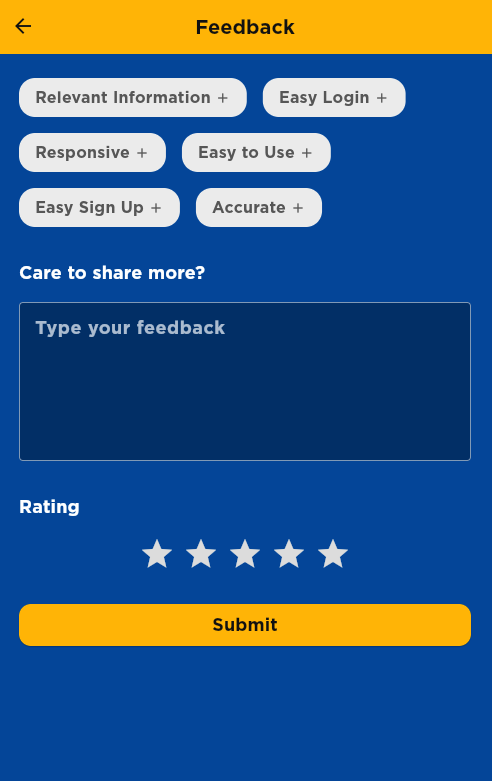
The screenshot above shows the Feedback Screen interface with selectable feedback topic buttons at the top, a text input field for detailed comments, a 5-star rating system, and the yellow Submit button for sending your feedback to the development team.
Feedback Topics
You can select multiple feedback topics by tapping them. Available topics include:
- Relevant Information: Information displayed in the app is relevant and useful
- Easy Login: The login process is straightforward
- Responsive: The app responds quickly and smoothly
- Easy to Use: The app is intuitive and easy to navigate
- Easy Sign Up: The sign-up process is simple
- Accurate: The information and data in the app is accurate
Each topic shows a "+" icon when not selected and a checkmark when selected.
Feedback Form
The form includes:
- Feedback topics: Multiple selectable buttons at the top
- Text field: "Type your feedback" - a text area for additional comments
- Rating: 5-star rating system where you tap stars to rate
- Submit button: Yellow button to submit your feedback
How to use this screen
Select feedback topics
- Look at the feedback topic buttons at the top of the screen
- Tap any topic that applies to your experience
- The button will highlight and show a checkmark when selected
- You can select multiple topics
- Tap again to deselect a topic
Add detailed feedback
- Tap the text field that says "Type your feedback"
- Enter your additional comments or details
- Share what you liked, what could be improved, or any specific issues
What happens: Your text is saved as you type.
Rate your experience
- Look at the 5-star rating section
- Tap on a star to set your rating (1-5 stars)
- Stars you tap and all stars to the left will be highlighted in gold
- Tap a different star to change your rating
What happens: Your rating is saved immediately.
Submit your feedback
- Review your selected topics, text, and rating
- Tap the yellow "Submit" button
- A success message appears and you're returned to the previous screen
What happens: Your feedback is sent to the development team. The form clears and you can submit more feedback if desired.
Mobile tips
- Multiple selections: You can select as many feedback topics as apply to your experience
- Optional fields: You can submit feedback with just a rating, or just selected topics - all fields are optional
- Star rating: Tap the same star again to keep that rating, or tap a different star to change it
- Text feedback: Use the text field for specific details, suggestions, or issues
- Success confirmation: You'll see a green success message when your feedback is submitted
Common questions
Q: Do I have to select feedback topics?
No, all fields are optional. You can submit just a rating, just text feedback, or any combination.
Q: Can I select multiple feedback topics?
Yes, tap as many topics as apply to your experience. Each one will show a checkmark when selected.
Q: What if I change my mind about a topic?
Tap the topic again to deselect it. The checkmark will disappear.
Q: How do I change my star rating?
Tap a different star. Your rating will update immediately to that number of stars.
Q: Can I submit feedback without a rating?
Yes, the rating is optional. You can submit feedback with just selected topics or text comments.
Q: What happens after I submit?
A success message appears and the form clears. You're returned to the previous screen and can submit more feedback if you'd like.
Q: Is my feedback anonymous?
Your feedback is associated with your account. The development team uses this to improve the app.
Q: Can I edit feedback after submitting?
No, once submitted, feedback cannot be edited. You can submit new feedback with corrections or additional details.
Q: What should I include in the text feedback?
Be specific about what you liked or what could be improved. Include details like: - What feature or screen you're commenting on - What works well or what doesn't - Suggestions for improvement - Any bugs or issues you encountered
Q: How long should my feedback be?
Write as much or as little as you'd like. A few sentences is helpful, but longer detailed feedback is even better.
Q: Will I get a response to my feedback?
Feedback is reviewed by the development team, but individual responses are not provided. Your feedback directly influences app improvements.
Q: What if I have a technical problem to report?
Use the text field to describe the problem in detail. Include what you were doing when the issue occurred and what happened.
Q: Can I attach screenshots or files?
No, you can only submit text feedback. Describe the issue in detail in the text field instead.