Message Detail Screen
What is this screen?
The Message Detail Screen shows you the complete content of a terminal message. You get here by tapping a message from the Messages screen. This screen displays the full message text, sender information, and the time it was sent.
What can you do here?
- Read the complete message: See the full content of the message
- View sender information: See who sent the message (e.g., Patrick Terminals)
- Check message time: See exactly when the message was sent
- Delete the message: Remove the message from your inbox
- Go back: Return to the Messages list
Understanding the screen
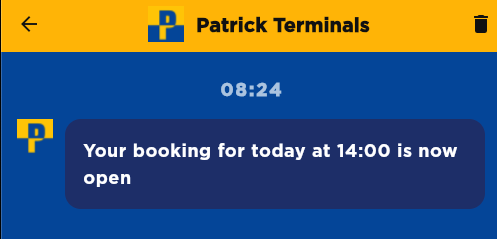
The screenshot above illustrates the Message Detail Screen, showing the complete message content with the sender information and delete button in the header, the message timestamp, and the full message text displayed in a card-style container.
Message Header
At the top, you'll see:
- Back arrow (←): Return to the messages list
- Sender icon and name: Who sent the message (e.g., Patrick Terminals with a colored icon)
- Delete button (trash icon): Remove the message from your inbox
Message Time
Below the header: - Time sent: Displays when the message was sent in 24-hour format (e.g., 08:24)
Message Content
The main content area shows:
- Message icon: A colored icon indicating the message category or type
- Message title: The subject or main heading of the message (displayed in bold)
- Message text: The complete message content in a card-style container
How to use this screen
Read the message
- Tap a message from the Messages screen
- The full message content displays
- Read the complete message carefully
- Note the time the message was sent
Delete a message
- Tap the delete button (trash icon) in the top-right
- The message is removed from your inbox
- You'll return to the Messages list
Go back to the list
- Tap the back arrow (←) in the top-left
- Return to the Messages list
- The message is now marked as read
Mobile tips
- Read carefully: Take time to read the entire message, especially if it contains instructions
- Check the time: Note when the message was sent to ensure information is still current
- Follow up promptly: If the message requires action, do so in a timely manner
- Save important messages: Screenshot or note down critical information for reference
- Delete when done: Use the delete button to remove messages you no longer need
Common questions
Q: How do I get to this screen?
Tap any message in the Messages screen. The message detail opens automatically.
Q: Can I reply to messages?
Most terminal messages are one-way communications. If you need to respond, use contact information from the Contacts screen.
Q: What should I do if a message contains instructions?
Read carefully and follow the instructions. If you're unsure, contact the terminal or your dispatcher for clarification.
Q: Can I delete messages?
Yes, tap the delete button (trash icon) in the top-right corner to remove a message from your inbox.
Q: What happens when I delete a message?
The message is removed from your inbox and you'll return to the Messages list. Deleted messages cannot be recovered.
Q: Can I forward messages to others?
The app doesn't have a forward function. You can share information manually or take a screenshot.
Q: Why is a message marked as read?
Opening a message automatically marks it as read. This updates the unread count on your profile.
Q: Can I mark a message as unread?
Look for a "Mark as Unread" option in the Messages list (usually by long-pressing a message) if you need to revisit it later.
Q: What if the message contains outdated information?
Always check the time the message was sent. Contact the terminal if you're unsure whether information is still current.
Q: Can I print messages?
The app doesn't have a direct print function. You can screenshot the message or copy the text to print through other means.
Q: What if I accidentally deleted a message?
Deleted messages cannot be recovered. Check your Messages list to see if it's still there, or contact the terminal for a copy.
Q: How do I know if a message is important?
Check the message content and sender. Important messages typically contain action items or time-sensitive information.
Q: What should I do if I don't understand a message?
Contact the sender (if listed) or call terminal operations for clarification. Don't ignore important messages.