Settings
What is this screen?
The Settings screen lets you customize notification preferences, appearance, and language for the app. You can control how you receive notifications and adjust the app's look and feel.
What can you do here?
- Manage notifications: Control notification types and delivery methods
- Change theme: Toggle between light and dark mode
- Change language: Switch the app to your preferred language
- Enable system notifications: Turn notifications on if they're disabled
Understanding the screen
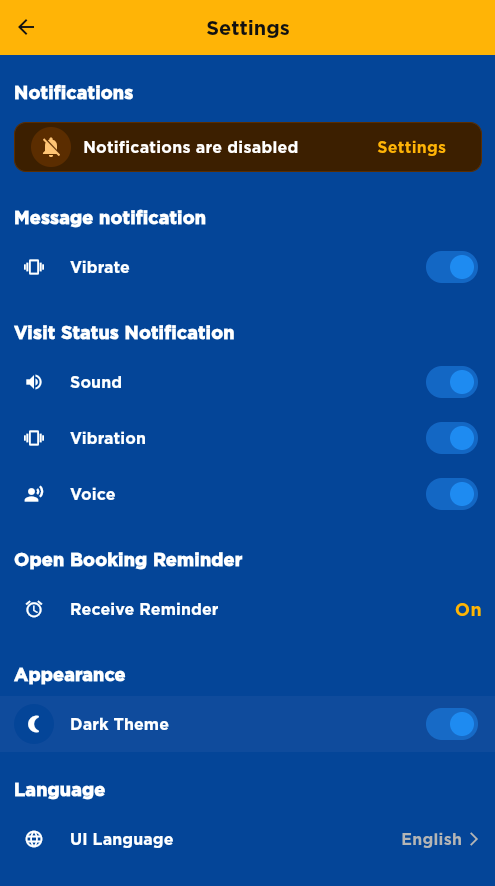
The screenshot above presents the Settings Screen with organized sections for Notifications (including message vibration, visit status sound/vibration/voice options, and booking reminders), Appearance (dark theme toggle), and Language (UI language selection).
Notifications Section
Notifications Status: Shows whether notifications are enabled or disabled with a "Settings" button to adjust system notification permissions.
Message Notification - Vibrate: Toggle vibration when messages arrive
Visit Status Notification - Sound: Toggle sound alerts for visit status updates - Vibration: Toggle vibration for visit status updates - Voice: Toggle voice announcements for visit status updates
Open Booking Reminder - Receive Reminder: Toggle to enable/disable booking reminders (shows "On" when enabled)
Appearance Section
Dark Theme: Toggle to switch between light and dark mode
Language Section
UI Language: Select your preferred language (currently showing "English")
How to use this screen
Enable or disable notifications
- Find the notification type you want to adjust (Message, Visit Status, or Booking Reminder)
- Tap the toggle switch to turn it on or off
- Changes take effect immediately
Change notification delivery method
- For Visit Status Notification, you can enable/disable:
- Sound: Audible alert
- Vibration: Phone vibration
- Voice: Spoken announcement
- Select the combination that works best for you
Toggle dark theme
- Find the "Dark Theme" option in the Appearance section
- Tap the toggle to enable or disable dark mode
- The app's appearance changes immediately
Change language
- Tap "UI Language" in the Language section
- Select your preferred language from the list
- The app updates immediately to use the new language
Mobile tips
- Notification permissions: If notifications are disabled, tap "Settings" to enable them in your device's system settings
- Multiple notification types: You can customize how you're notified for different types of updates (sound, vibration, voice)
- Dark theme: Useful for low-light conditions and can help save battery on OLED screens
- Voice notifications: Helpful while driving - you can receive updates without looking at the screen
Common questions
Q: Why are my notifications disabled?
Notifications may be disabled in your device's system settings. Tap the "Settings" button next to "Notifications are disabled" to enable them.
Q: Can I have different notification settings for different types?
Yes, you can customize Message notifications and Visit Status notifications separately. Message notifications only have vibration, while Visit Status notifications have sound, vibration, and voice options.
Q: What's the difference between vibration and voice notifications?
Vibration makes your phone vibrate silently. Voice notifications read the update aloud to you, which is useful while driving.
Q: Will changing the theme affect my data?
No, changing between light and dark theme only affects the app's appearance. Your bookings and data remain unchanged.
Q: Can I change language without restarting the app?
Yes, the app updates to the new language immediately when you select it.
Q: What happens if I disable booking reminders?
You won't receive notifications before your bookings. You can re-enable them anytime from this screen.
Q: Do I need to enable all notification types?
No, you can customize which notifications you want. However, keeping booking reminders enabled helps you stay on schedule.
Q: Which languages are available?
Tap "UI Language" to see all available language options for the app.
Q: Can I use voice notifications while driving?
Yes, voice notifications are designed to be used while driving so you can receive updates without looking at the screen.
Q: Will my settings be saved if I close the app?
Yes, all your settings are saved automatically and will be restored when you reopen the app.