Home Screen
What is this screen?
The Home Screen is your main dashboard when you open the app. It shows you everything you need to know at a glance: your terminal name, how long the truck turnaround time is, upcoming zone statuses, and your next booking.
What can you do here?
- See your terminal information: View the terminal name and current truck turnaround time
- View upcoming zones: See the next available zones and whether each zone is open or closed for drivers
- Access your next booking: Quickly see details of your next scheduled booking
- Navigate to other areas: Use the bottom navigation to switch between Home, Visit, Bookings, and Profile
Understanding the screen
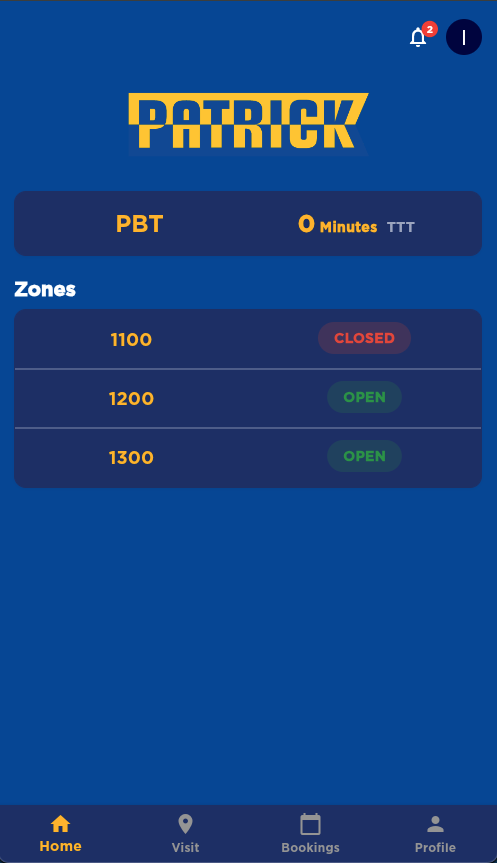
The following screenshot displays the Home Screen interface, where you can observe the terminal information card at the top (showing the terminal name and turnaround time), the zones section, and your next booking card prominently displayed for quick access.
Terminal Information Card
At the top, you'll see a card showing:
- Terminal name: The terminal you're currently working with
- Turnaround Time (TTT): The average time (in minutes) trucks are spending at the terminal from entry to exit
This helps you estimate how long you might be at the terminal.
Zones
The Zones section shows upcoming zones:
- Time: When the zone starts (each zone represents one hour)
- Status: Whether the zone is "OPEN" (green) or "CLOSED" (red)
A zone that shows OPEN means drivers are currently allowed to enter the terminal for bookings within that zone's time slot. A CLOSED zone means drivers are not permitted to enter for bookings in that time slot.
This helps you see which time slots are accepting drivers and plan your arrival accordingly.
Next Booking Card
Your next scheduled booking appears here showing:
- Registration number (and BAT number if assigned)
- Manifest PIN: The 4-digit PIN for your manifest (shown with a keypad icon)
- Status indicators:
- HOLD (orange): The booking has administrative holds that need to be cleared
- OPEN (green) or CLOSED (red): Whether the booking time slot is currently open
- OOG (red with help icon): "Out of Gauge" - indicates cargo that exceeds standard dimensions. Tap the help icon for more information
- Time and date: When your booking is scheduled
Tap the booking card to see full details about containers, exchange information, and more.
Offline Banner
If you lose internet connection, a banner appears at the top showing "No Internet Connection". Your previously loaded information remains visible, and the banner disappears automatically when your connection is restored.
How to navigate
Tap your next booking
Tapping your next booking card opens a detailed view showing:
- All containers in the booking
- Container details (ID, size, type, status)
- Exchange information (import/export)
- Any special handling requirements
To go back, tap the back arrow in the top-left corner.
Use the bottom navigation
Switch between main areas of the app:
- Home (house icon): You're here now - your dashboard
- Visit (location icon): View your active visit details when you're at the terminal
- Bookings (calendar icon): See all your upcoming bookings and completed visits
- Profile (person icon): Manage your account, settings, and preferences

Mobile tips
- Automatic refresh: The screen automatically updates every few minutes to show current information. You don't need to manually refresh.
- Data stays visible: Even if you lose internet connection, your information stays on screen so you can still reference it
- Tap the booking for details: Always tap your next booking card to see complete container and exchange information
- Watch for OOG indicator: If you see a red "OOG" badge on your booking, tap the help icon to understand what it means
- Check turnaround time: Use the TTT (Turnaround Time) to estimate how long you might be at the terminal
Common questions
Q: How often does the information update?
The screen automatically refreshes every few minutes (the timing is managed by the system). You'll always see current information without needing to refresh manually.
Q: What should I do if I see "No Internet Connection"?
Don't worry - your information is still visible on screen. The app will automatically reconnect and update when your internet connection returns. You can continue to view your booking details and terminal information.
Q: What does TTT mean?
TTT stands for "Truck Turnaround Time" - it shows the average time (in minutes) that trucks are spending at the terminal from gate entry to exit.
Q: What does the HOLD tag on my booking mean?
A HOLD indicator means there are administrative holds on your booking that need to be cleared by terminal staff before you can proceed. Contact the terminal or check with your allocator.
Q: What does OOG mean?
OOG stands for "Out of Gauge" and indicates cargo that exceeds standard container dimensions. If you see the OOG badge on your booking, tap the help icon (ⓘ) next to it for more information about what this means for your visit.
Q: Why do some zones show CLOSED?
A zone shows CLOSED when drivers are not allowed to enter the terminal for bookings during that time slot. This could be due to terminal capacity, maintenance, or operating hours. Only OPEN zones are accepting drivers — an OPEN zone means you can enter the terminal for bookings within that zone's time slot.
Q: How do I see all my bookings, not just the next one?
Tap the "Bookings" icon in the bottom navigation (calendar icon). This shows you all your upcoming bookings, plus your completed visits.
Q: What's the number with the keypad icon on my booking?
That's your Manifest PIN number, which you'll need when checking in at the terminal. Keep this number handy.
Q: Can I call the terminal from this screen?
Terminal contact information is available in the profile tab under "Contacts" or you can call using your phone's dialer with the terminal's published number.
Q: The screen looks different in dark mode - how do I change it?
Go to the profile tab (person icon in bottom navigation) and look for the theme toggle at the top, or go to Settings to change between light and dark mode.