WIM Screen (Weigh-in-Motion)
What is this screen?
The WIM (Weigh-in-Motion) Screen displays weight measurements for your truck as it passes over weighing equipment at the terminal. This feature is currently available at Port Botany terminal only and provides real-time weight data during your visit. The WIM tab appears alongside the Exchanges tab when weight data is available.
What can you do here?
- View truck weight: See your truck's total gross weight
- Check axle weights: Review individual axle group weight measurements
- Verify compliance: Confirm weights are within legal limits and check rooftop acceptance status
- Access weight documentation: View or download weight records (PDF chit)
Understanding the screen
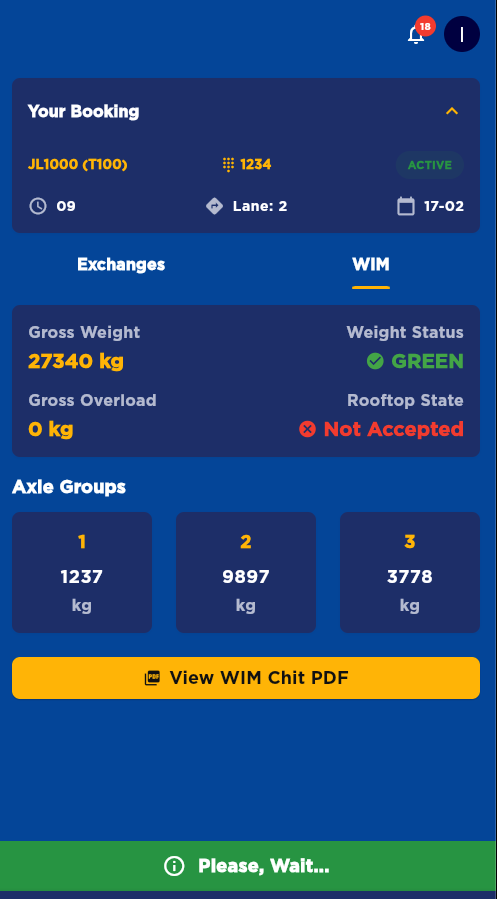
The screenshot above shows the WIM (Weigh-in-Motion) Screen interface, displaying your truck's weight measurements including gross weight, weight status indicators with color-coded compliance markers, individual axle group weights, and the rooftop acceptance status.
Your Booking Information
At the top of the screen, you'll see your booking details:
- Booking reference: Your booking number (e.g., JL1000)
- Container number: The container ID (e.g., T100)
- Lane: Lane assigned
- Time and Date: Manifested Zone and Date
- Status: Your booking status (e.g., ACTIVE)
Weight Information
The screen displays:
- Gross Weight: Total weight of your truck and cargo in kilograms
- Weight Status: Compliance indicator (GREEN = within limits, YELLOW = Please Proceed to CFS, RED = overweight)
- Gross Overload: The amount your truck is overweight in kilograms (0 kg = within limits)
- Rooftop State: Whether the rooftop/container is accepted (Accepted = GREEN checkmark, Not Accepted = RED X)
Axle Groups
The screen shows individual axle group weights:
Each axle group weight is displayed in kilograms. These measurements help ensure each axle is within legal weight limits. For example:
- Axle Group 1: Weight on the first axle group (typically steer axle)
- Axle Group 2: Weight on the second axle group (typically drive axles)
- Axle Group 3: Weight on the third axle group (typically trailer axles)
Compliance Indicators
The screen uses color-coded indicators:
- Green checkmark: Compliant (weight within limits, rooftop accepted)
- Red X: Non-compliant (overweight or rooftop not accepted)
- Numeric values: Actual weight measurements in kilograms
How to use this screen
View WIM data
- Go to the Visit tab when you have an active visit at Port Botany
- The WIM tab appears at the top alongside the Exchanges tab when weight data is available
- Tap the "WIM" tab to view your weight measurements
- The app automatically switches to the WIM tab when new weight data arrives
Review weight compliance
- Check your Gross Weight to see your total truck weight
- Look at your Weight Status indicator:
- GREEN checkmark = Your weight is within legal limits
- RED X = Your weight exceeds legal limits. Contact terminal via intercom if assistance required
- Check Gross Overload to see how much over the limit you are (if applicable)
- Review Rooftop State to confirm the container/rooftop is accepted:
- GREEN checkmark (Accepted) = Container is properly secured
- RED X (Not Accepted) = Container needs attention before proceeding. Contact terminal via intercom if assistance required
- Review individual Axle Group weights to ensure each axle is within limits
Access weight documentation
- Scroll down to find the "View WIM Chit PDF" button
- Tap the button to view your official weight certificate
- The PDF opens in the app's PDF viewer
- You can download or share the PDF as needed for your records
Mobile tips
- Automatic switching: The app automatically shows the WIM tab when weight data is available - you don't need to check manually
- Check rooftop status: Always verify that your rooftop/container is marked as "Accepted" before proceeding
- Keep for records: Download the WIM Chit PDF for your records and compliance documentation
- Check compliance: Review weights before leaving the terminal to ensure compliance
- Report discrepancies: If weights or rooftop status seem incorrect, report immediately to terminal staff
- Overweight action: If you're overweight (Gross Overload > 0 kg), contact terminal staff or your dispatcher immediately
Common questions
Q: What is WIM?
WIM stands for Weigh-in-Motion. It's a system that weighs your truck while you drive over sensors at the terminal, without needing to stop at a static weighbridge.
Q: Which terminals have WIM?
Currently, WIM is available at Port Botany terminal only. Other terminals may not have this feature.
Q: Do I need to stop to get weighed?
No, WIM weighs your truck while you're moving. Just drive normally over the WIM sensors at the designated location.
Q: How accurate is WIM?
WIM systems are calibrated for accuracy, though slight variations may occur compared to static weighing. For precise legal weights, static weighbridges remain the standard.
Q: Why can't I access the WIM tab?
The WIM tab is only active when: - You're at Port Botany terminal - You have an active visit - WIM data is available for your visit
If the tab is disabled (grayed out), no WIM data is available yet.
Q: When does WIM data appear?
WIM data appears after you drive over the weighing equipment at the terminal. This typically happens during your visit as you move through the terminal.
Q: What does "Rooftop State" mean?
Rooftop State indicates whether your container or rooftop is properly accepted and secured. "Accepted" (GREEN) means it's ready to proceed. "Not Accepted" (RED) means there's an issue that needs to be resolved before you can leave.
Q: What should I do if Rooftop State shows "Not Accepted"?
Contact terminal staff immediately to address the issue. They will inspect your container/rooftop and advise on what needs to be corrected before you can proceed.
Q: What is "Gross Overload"?
Gross Overload shows how many kilograms your truck exceeds the legal weight limit. If it shows 0 kg, you're within limits. Any number above 0 means you're overweight and need to adjust your load.
Q: What if my weight is over the limit?
If you're overweight (Gross Overload > 0 kg), you may need to: - Adjust your load by removing cargo - Contact terminal staff for instructions - Obtain special permits if required - Contact your dispatcher
Q: Can I view WIM data after I leave the terminal?
Yes, WIM data remains available in your booking details. Go to Bookings > Completed, find your visit, and check the WIM tab.
Q: What's a weight chit?
A weight chit (or weight certificate) is an official document showing your truck's weight measurements. You can download this as a PDF from the "View WIM Chit PDF" button for your records.
Q: Why did the app automatically switch to the WIM tab?
The app automatically switches to WIM when new weight data arrives to ensure you see this important information immediately.
Q: What should I do if WIM data seems wrong?
If measurements appear incorrect: - Report to terminal staff immediately - Request a re-weigh if possible - Note the discrepancy for your records - Contact your dispatcher if needed
Q: Is WIM data used for enforcement?
WIM data may be used for compliance monitoring. Overweight violations could result in fines or required load adjustments. Always ensure your loads are within legal limits.
Q: Can I get WIM data for multiple passes?
If you pass over WIM equipment multiple times during a visit, the most recent or most accurate measurement is typically displayed.
Q: How long is WIM data retained?
WIM data is retained with your visit records. Check the About screen or privacy policy for specific data retention policies.
Q: What if I need official weight documentation?
Use the "View WIM Chit PDF" button to get an official weight document. This can be used for record-keeping, compliance, or as proof of weight.
Q: Can I share WIM data with my dispatcher?
Yes, you can share the WIM Chit PDF or manually share the weight information from the screen with your dispatcher.