Messages Screen
What is this screen?
The Messages Screen shows you all communications from the terminal. This includes announcements, updates, important notices, and messages sent specifically to you. It's your inbox for terminal communications. You can view unread messages or all messages using the tabs at the top.
What can you do here?
- View unread messages: See only messages you haven't read yet
- View all messages: See a list of all terminal communications
- Read message details: Tap any message to see the full content
- Filter by status: Switch between Unread and All tabs to organize messages
- Access important information: Review announcements and updates anytime
Understanding the screen
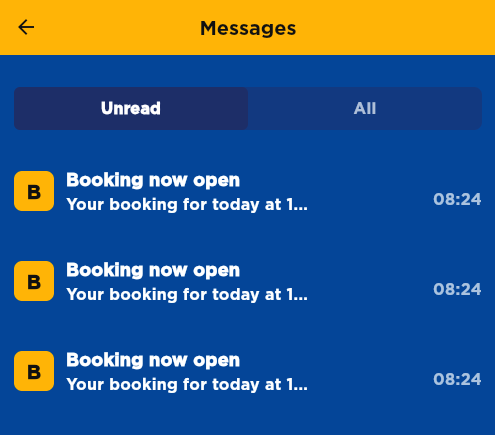
The screenshot above presents the Messages Screen with the Unread and All tabs at the top, the message list displaying icons showing the first letter of each message subject, message titles, preview text, and timestamps for each communication from the terminal.
Message Tabs
The screen has two tabs at the top:
- Unread: Shows only messages you haven't read yet
- All: Shows all messages in your inbox
Message List
Each message in the list shows:
- Icon: Shows the first letter of the message subject
- Title: The subject or main heading of the message
- Preview text: A brief preview of the message content (truncated)
- Time: When the message was sent (displayed on the right in 24-hour format, e.g., 08:24)
Message Types
Messages may include:
- Booking messages: Updates about your bookings (e.g., "Booking now open")
- Terminal announcements: General updates about terminal operations
- Operational changes: Changes to procedures, hours, or services
- System notifications: Technical updates or maintenance notices
- Safety alerts: Important safety information
How to use this screen
View unread messages
- Open the Messages screen
- Tap the "Unread" tab at the top
- You'll see only messages you haven't read yet
- Most recent messages appear at the top
View all messages
- Open the Messages screen
- Tap the "All" tab at the top
- You'll see all messages in your inbox
- Most recent messages appear at the top
Read a message
- Tap any message in the list
- The full message content opens in a detail view
- Read the complete message
- The message is automatically marked as read
Go back to the list
- Tap the back arrow (←) in the top-left
- You return to the message list
- The message you just read will no longer appear in the Unread tab
Switch between tabs
- Tap the "Unread" tab to see only unread messages
- Tap the "All" tab to see all messages
- The tab you select stays active until you switch again
Mobile tips
- Use the Unread tab: Tap the "Unread" tab to quickly see messages you haven't read yet
- Check messages regularly: Terminal messages may contain important operational updates
- Read promptly: Try to read messages soon after receiving them to stay informed
- Check before visits: Review recent messages before heading to the terminal
- Watch for badges: The notification badge on your profile icon alerts you to new messages
- Message preview: Read the preview text to get a quick idea of the message content before opening it
Common questions
Q: How do I know when I have new messages?
A notification badge appears on your profile icon showing the number of unread messages. You may also receive push notifications (if enabled).
Q: What do the colored icons mean?
The colored icons display the first letter of the message subject. Each message shows the initial letter of its title in a colored circle.
Q: How do I see only unread messages?
Tap the "Unread" tab at the top of the Messages screen. This shows only messages you haven't read yet.
Q: How do I see all messages?
Tap the "All" tab at the top of the Messages screen. This shows all messages in your inbox.
Q: Can I delete messages?
Yes, tap on a message to open it, then tap the delete button (trash icon) in the top-right corner to remove it from your inbox.
Q: How long are messages kept?
Messages are typically kept for a certain period (weeks or months). Older messages may be automatically archived or removed.
Q: Can I reply to messages?
Most terminal messages are one-way communications. If you need to respond, use the Contacts screen to find the appropriate contact information.
Q: What should I do if I miss a message?
Check your message list regularly. All messages remain in your inbox until they're archived by the system. Use the "All" tab to see all messages.
Q: Are messages specific to me or general?
Messages can be both. Some are general announcements sent to all drivers, while others may be specific to your bookings or account.
Q: What if a message contains instructions I need to follow?
Read the message carefully and follow any instructions. If you're unsure, contact the terminal or your dispatcher for clarification.
Q: Do messages expire?
Some messages may have time-sensitive information that becomes outdated. They will expire automatically and disappear from your inbox.
Q: Can I share messages with others?
The app doesn't typically have a share function. You can manually share the information or take a screenshot if needed.
Q: What's the difference between messages and notifications?
- Messages: Full communications stored in your inbox
- Notifications: Push notifications that may point to messages or other updates
Q: What do the message times mean?
The time shown on the right (e.g., 08:24) is when the message was sent in 24-hour format. Most recent messages appear at the top of the list.